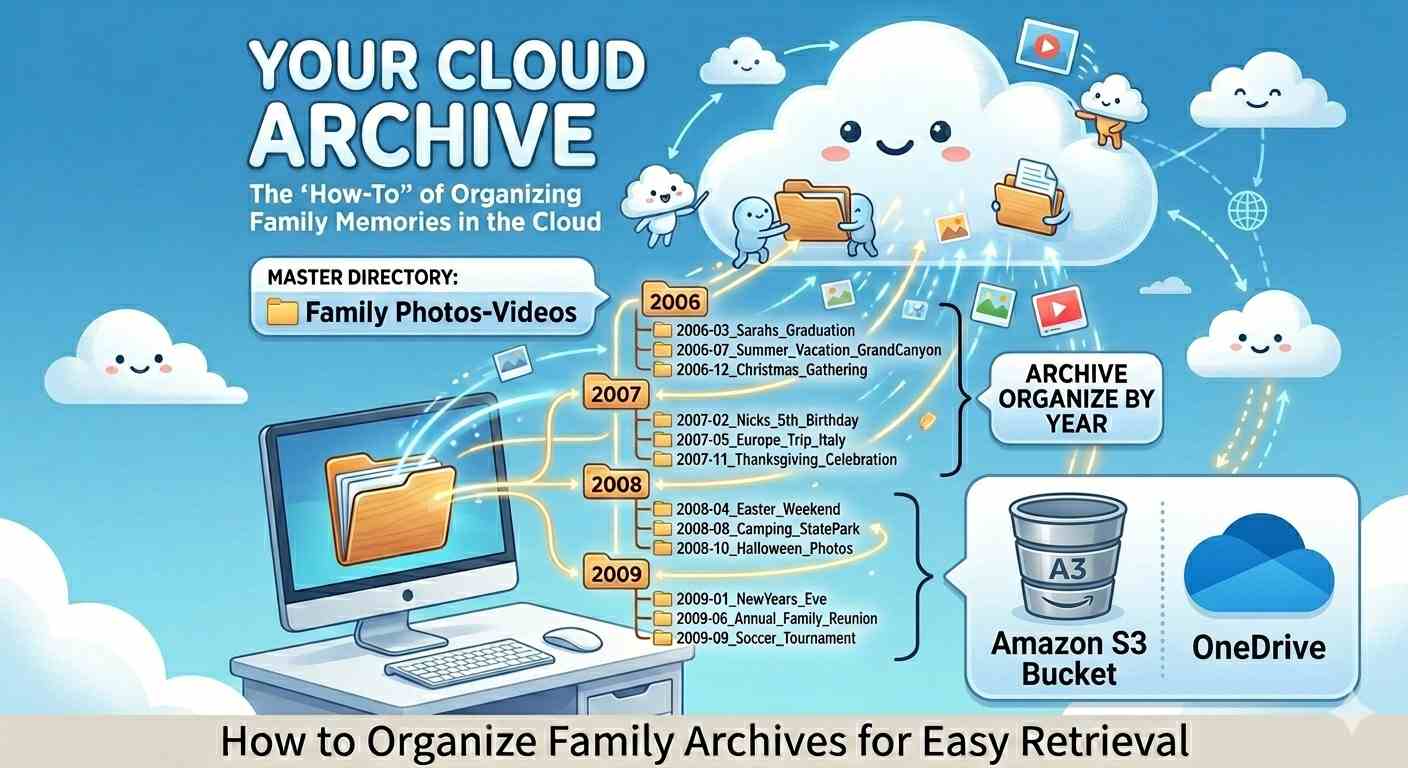
Like most people, my media library exploded over the years. It started in the mid-2000s with a Canon PowerShot, grew with an SLR, and snowballed once smartphones took over.
At first, I kept everything on computer hard drives and USB thumb drives. But I quickly learned that physical media comes with a catch: it corrupts, gets lost, or suffers physical damage. Unless you spend hours meticulously labeling and organizing thumb drives, you will lose track of your files. Upgrading to large, dedicated external hard drives helped simplify my workflow, but the fear of hardware failure was always there.
That realization changed my approach. In this post, I’ll examine why moving to the cloud is a game-changer, focusing on my firsthand experience with OneDrive and the hidden advantages of using Amazon S3.
Ten years ago, I invested in a Microsoft 365 Family plan to combine an office productivity suite with reliable cloud storage. Back then, it cost around ₹4,000.00 annually, and it has since adjusted to about ₹6,199.00 plus tax per year. It provides a solid 1 TB of space and licenses for 5 users for office 365. It’s been a fantastic baseline strategy—though I still keep a physical hard drive copy as a failsafe.
Organising The Contents

The Missing Ingredient: Uncompromising Discipline
A solid cloud storage plan is only as good as the discipline behind it. My routine is simple: every few months—or immediately after a major family vacation or outing—I offload all new media onto a local PC drive.
From there, the most critical step begins: the first-level filter. I carefully sort through the files, delete the blurry or unwanted shots, and keep only the absolute best. While this process can be admittedly tedious, it is vital for long-term management. Without consistent routine and discipline, digital clutter will eventually overwhelm you.
Once filtered, I rename the folder using descriptive, event-based keywords (for example, Beach-Visit-School-Friends) rather than generic camera codes. I then drop it into a clean, year-by-year folder hierarchy.
Back in 2006, I used to rely entirely on the chronological folder structures automatically generated by my digital camera. While technically organized, I quickly realized that human memory doesn’t work by precise dates. Years later, looking for a specific memory meant opening dozens of random date-coded folders just to find the right event. Shifting to an event-labeled structure changed everything. Today, 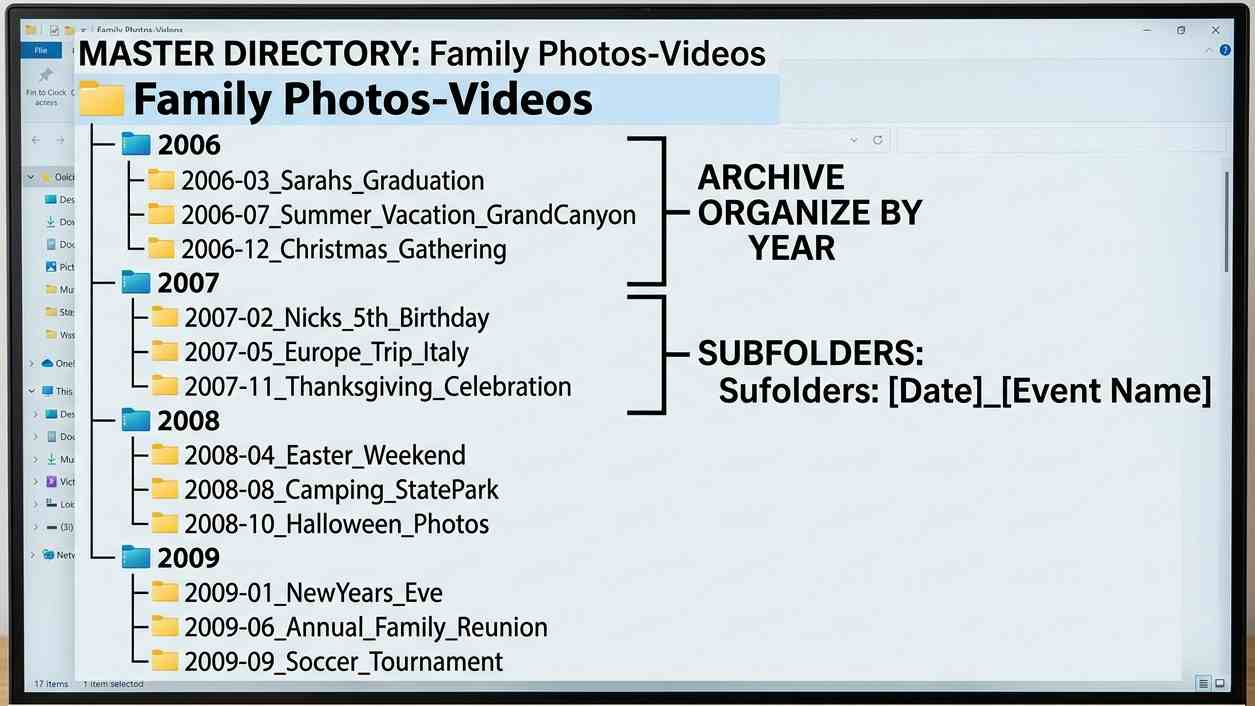 whenever my family wants to take a trip down memory lane, all we need to know is the approximate year—the folders themselves handle the rest.
Finally, I mirror this organized folder structure to both OneDrive and my local external hard drive as a secondary backup. Consistently maintaining this loop every few months has been incredibly rewarding. After all, what is life if not a collection of beautiful memories? Having a disciplined workflow to clean, label, and safely preserve those memories ensures that they remain readily accessible whenever we want to look back.
OneDrive

Historically, OneDrive checked all the boxes. It made viewing and sharing large media files with friends and family seamless. The biggest selling point was the bundled Microsoft 365 Family plan, which provided premium office suite access to five members of my household, my cousins also used it for a period. At the time, the package deal felt fair and highly cost-effective.
But then, two things changed. First, the annual subscription cost slowly inched its way up toward the higher side. Second, our workflow evolved. We began adopting Google’s free cloud productivity tools like Docs, Sheets and Slides, completely abandoning our Microsoft applications.
With my family no longer touching the Office apps, the value proposition dissolved. I was forced to re-evaluate the expense: paying an annual recurring fee of ₹6,500+ just to host a family photo archive simply didn’t add up anymore.
Amazon S3

Enter Amazon S3 and the Magic of Glacier
That financial turning point is what led me to explore Amazon S3 (Simple Storage Service). While the tech market is flooded with various cloud storage options, the specific feature that caught my attention was S3 Glacier.
What exactly is S3 Glacier? It is a specialized suite of storage tiers within AWS designed explicitly for long-term archiving and secure backups. To use an analogy: if standard S3 is like a quick-access drawer right at your desk, S3 Glacier is a secure, climate-controlled storage vault down the street. It is incredibly inexpensive to let your files sit there, making it perfect for “cold data”—those precious memories you rarely look at but absolutely cannot afford to lose.
By moving older, historical folders into a deep archive, your storage bill drops off a cliff. In fact, if you choose the Glacier Deep Archive tier, the cost plummets to less than 1/20th of standard cloud storage rates. AWS offers three distinct flavors here depending on your needs: Glacier Instant Retrieval, Glacier Flexible Retrieval, and Glacier Deep Archive. By matching the right tier to your viewing habits, you can drastically cut down your recurring annual expenses.
So, what’s the catch?
Glacier is designed for archiving, meaning you pay a small fee whenever you want to access or view your files. While this fee is minimal, AWS will levy minor charges based on the total file size and the number of requests you make during a download.
However, even when you factor in these data retrieval costs, the overall math still works out heavily in your favor. It significantly lowers your baseline storage costs. Look at it this way: even if a physical hard drive at home gets permanently damaged or lost, you can rest easy knowing you can securely pull your entire life’s archive back from the cloud for a very reasonable fee.
I have mapped out a rough cost breakdown below to show you exactly how the economics stack up.
Storage Cost:
| Storage Class | Price per GB / month | 100 GB Monthly Cost | Access Speed |
| S3 Standard (Normal) | ~$0.025 (₹2.10) | ~₹210 / month | Instant (Milliseconds) |
| Glacier Instant Retrieval | ~$0.005 (₹0.42) | ~₹42 / month | Instant (Few Milliseconds) |
| Glacier Deep Archive | ~$0.00099 (₹0.08) | ~₹8 / month | 12 to 48 Hours |
This is an approx cost per month for 100 GB of files. Files in a Deep Archive need at least a day to view or download whereas files stored as Glacier Instant retrieval can be viewed in a few milliseconds.
The Fine Print: Critical Realities of Using Deep Archive
Before you move your entire library to Glacier Deep Archive, it is vital to understand how it handles file retrieval. It is a fantastic cost-saver, but it comes with three distinct operational realities:
- The 12-to-48 Hour Wait: Because your files are heavily encrypted and “frozen” on tape drives, accessing them takes time. If you wake up on a Saturday morning wanting to watch 100 old family videos using the budget-friendly Bulk Restore option, you won’t actually be able to view them until Monday morning. You have to plan ahead.
- The “Double Storage” Phase: When you “thaw” files from Deep Archive, AWS doesn’t just let you look at them directly. It temporarily copies them to an active S3 tier for a duration you choose (for example, 5 days) so you can download them. During those 5 days, you are billed for both the deep archive storage and a pro-rated amount for the temporary active storage simultaneously. While this amounts to a fraction of a paisa for a small 500 MB folder, it is something to keep in mind if you are restoring terabytes of data.
- Request Fees Take Center Stage: AWS charges you based on the number of files you pull out, not just their size. The individual “retrieval request fee” to initiate the thaw can often outweigh the actual data weight fee. If you are restoring 100 separate small files totaling 500 MB, you will actually pay AWS more for the “administrative paperwork” of moving 100 individual items than for the actual bandwidth they consume.
Conclusion:
Amaon S3 is beneficial if we utilise the Glacier feature. Otherwise for 100 GB storage space, cost per annum is ₹ 210.00 x 12 =₹2,520.00 whereas in OneDrive, its 1 TB for ₹ 6500.00 == ₹65.00 for 100 GB.
Amazon recommends to use the Glacier Instant Retrieval for storing all family photos and videos. We save a lot in cost and whenever we need we can still view and download files for a minimal fees. This model is definitely good for Family archives.
Need support in archiving family stuff, reach out to duraivelrpc@gmail.com.
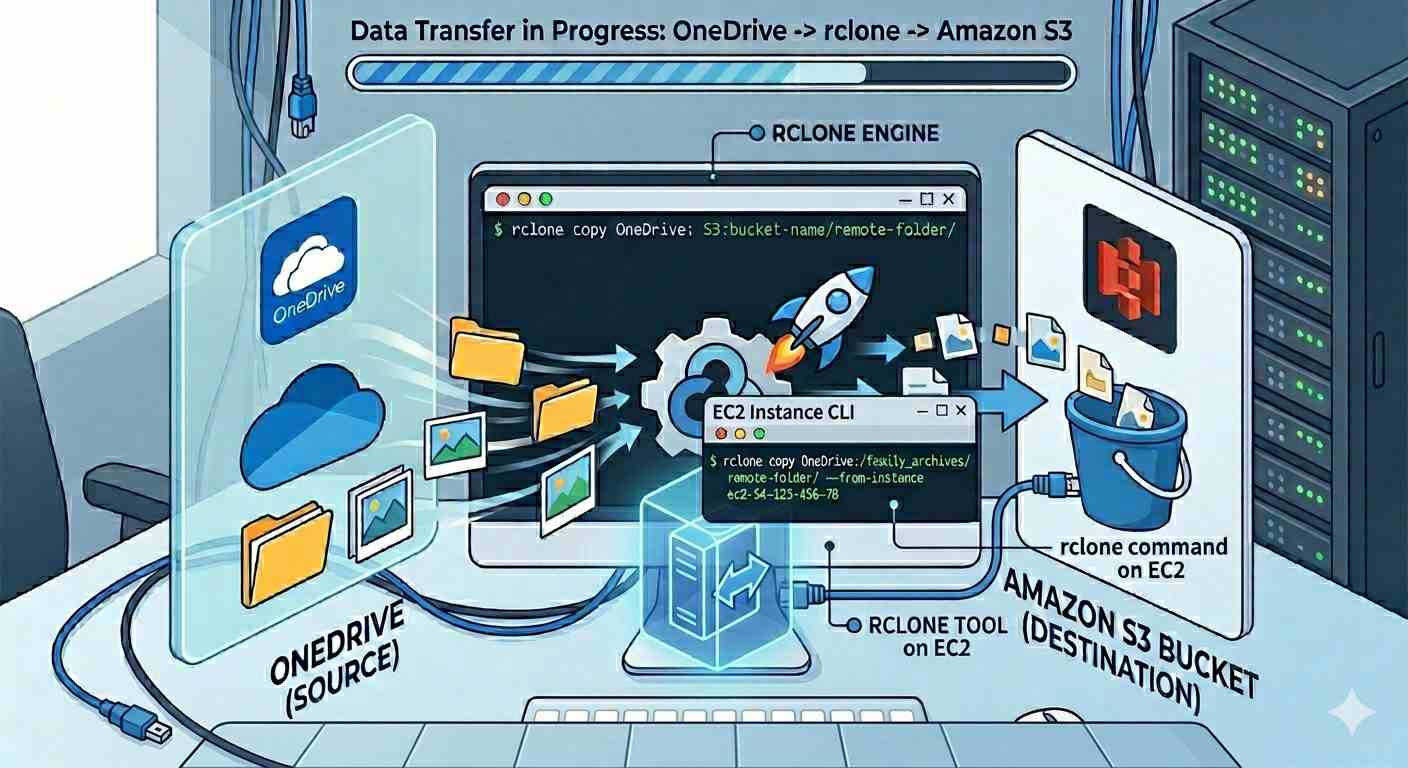
rclone – I have a OneDrive and wish to move contents to s3, what’s efficient way ?
rclone is an excellent tool for seamlessly copying files from one drive to S3. I used it and it works very well. Since I had more than 200 GB of files to move, I used the screen functionality on my EC2 instance to move the files in the background, totally unattended, while I can continue with my regular work. It sure needs some amount of experience in using cmd tools and linux shell. For a layman its not practically feasible to use this tool. Also, it’s not wise to download the files from one drive to our local PC and then upload. There are many practical challenges to it, like even a power interruption or network outage at home can break the copy process. I used my EC2 instance to directly copy files from one drive to S3.
The following is the typical command to copy files. Ran it in a bash script. We need to do a “rclone config” with credential of both one drive and S3 to connect to both cloud storage services before running the cmd.
runcmd.sh
- ./rclone copy my_onedrive:Trunk/Photos/Year/ my_s3:familystorage-xxx/familycommon/yearly-photos-videos/ –progress –transfers 4 –checkers 2 –s3-upload-cutoff 100M –s3-chunk-size 64M –buffer-size 0 –use-mmap –retries 1 –s3-no-check-bucket –stats 1m –log-file=./yearly.log –log-level=INFO –stats 1m –stats-one-line
- echo ” Done copying ……………. \n”
- ./rclone check my_onedrive:Trunk/Photos/Year/ my_s3:familystorage-xxx/familycommon/yearly-photos-videos/ –s3-no-check-bucket –one-way –log-file=./verify_yearly.log –log-level=INFO
- echo ” Verifying completed ……………. \n”
There are various command line options used here to limit my cpu usage in EC2 instance. This is mainly to ensure my website functionality is not affected and its does not crash the system.
The “check” functionality verified if the count of files and names match between source and destination.
Need support in archiving family stuff, reach out to duraivelrpc@gmail.com.
Good one Durai
Thanks Vinay.
When we chatted about this, I was thinking of an index for the S3 archive “issue”, issue may be too strong.
using a low fidelity copy locally for browsing that takes up much less space with a high-fidelity copy in the archive when that format is called for.
Nice work. Keep it up!
Yeah … the way I understood is that, S3 is considered as pure memory space in cloud with additional techniques / procedures for saving cost, data integrity, long term safe storage ..etc. They dont support any apps or solutions, for online usage of the stored contents like viewing, editing of files…. Be it image or complex design file, they treat everything as objects.